
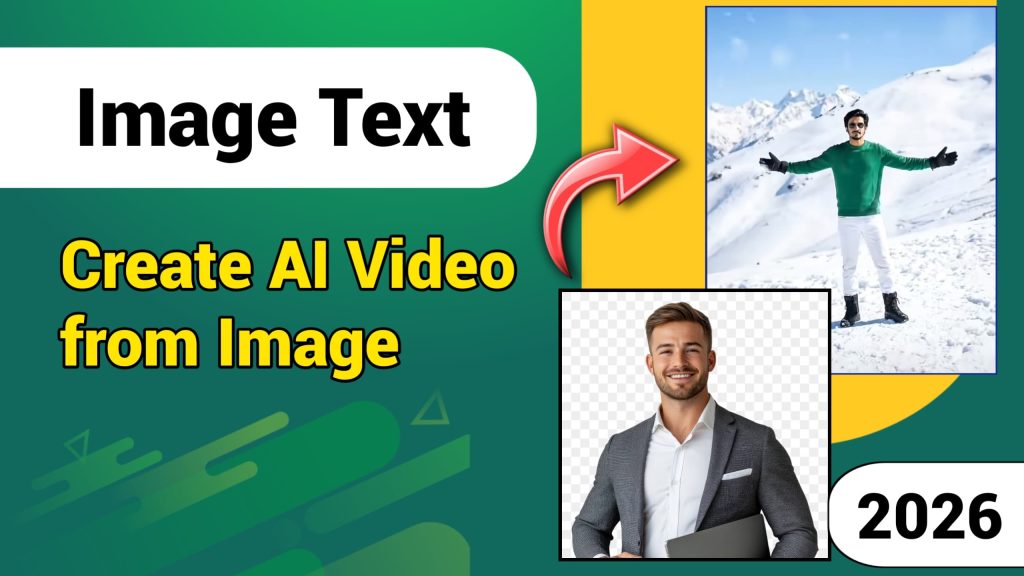
How to Create AI Videos from Images Using Google Gemini and Grok AI
Introduction
This detailed guide is published by WaqasTechApk / Waqas Tech for creators who want to make AI videos in a simple and practical way. In this post, Google Gemini and Grok AI are explained separately and clearly, so you know exactly where to create images, where to add prompts, and where to convert images into videos.
This article follows the same process shown in our video and is written for beginners, YouTubers, and short-form content creators.
Step 1: Create an AI Image Using Google Gemini
Google Gemini is used only for image creation in this workflow. This is the first step and must be completed before moving to video creation.
Open Google Gemini
Open your browser and visit the official Google Gemini page:
Log in with your Google account to access image generation features.
Add Image Generation Prompt (Google Gemini)
Below is the exact place where you will add your Google Gemini image prompt.
⚠️ IMPORTANT: Do NOT change the structure of the prompt. Just copy and paste it here when publishing the post.
🔽 PLACE GOOGLE GEMINI IMAGE PROMPT HERE 🔽
“Realistic 8K cinematic professional photography of the young man from the reference image, standing confidently on a bright, snow-covered mountain slope. Crucial: Maintain 100% exact face accuracy and preserve original identity with zero distortion. He is wearing a vibrant green long-sleeve sweater, white trousers, black gloves, black snow boots, and stylish sunglasses with arms wide open. Lighting is bright sunny with soft shadows on textured snow. Perfectly level camera, straight horizon, no tilt, subject perfectly upright and verticals aligned. High detail, sharp focus on facial features, 9:16 aspect ratio.”
After pasting the prompt in Google Gemini, submit it. Gemini will generate one or more AI images based on your prompt.
Download the best image because this image will be used for video creation in the next step.
Step 2: Image Selection and Preparation
Before moving to Grok AI, make sure:
The image is clear and high quality
The subject is centered
The background is not overly complex
Save the final image on your device.
Step 3: Convert Image to Video Using Grok AI
Now we move to Grok AI, which is used only for video creation. Google Gemini is NOT used in this step.
Open Grok AI
Visit the official Grok AI page:
[GROK AI IMAGE PLACEHOLDER]
Upload Image to Grok AI
Upload the image that you generated earlier using Google Gemini.
Add Video Creation Prompt (Grok AI)
Below is the exact place where you will add your Grok AI video prompt.
⚠️ IMPORTANT: This prompt controls animation, motion, and video style.
🔽 PLACE GROK AI VIDEO PROMPT HERE 🔽“Create a high-end realistic cinematic drone shot video based on the reference frame. The drone performs a smooth slow pull-back and orbit movement. Strict Requirement: The subject’s face must remain 100% identical to the reference image throughout the entire video. No facial distortion, no identity change, and no blurring of features. The face must stay sharp, clear, and high-definition as the drone reveals the vast snowy mountain landscape. 8K resolution, professional color grading, and consistent character physics.”
After adding the prompt, submit it. Grok AI will process the image and generate a short AI video.
Preview the video and download the final result.
Step 4: Where to Get Prompts from Waqas Tech
To make things easy for beginners, both prompts are shared on WaqasTechApk / Waqas Tech.
How to Find the Prompts
Open Google Chrome
Search for Waqas Tech
Open the official website
Scroll down and open the relevant post
Copy both prompts and paste them in the sections above
This ensures correct usage and avoids prompt errors.
Step 5: Using These AI Videos for Shorts
The videos created using Google Gemini and Grok AI are perfect for:
YouTube Shorts
Instagram Reels
TikTok
You can further enhance them using any video editor by adding music, captions, or text overlays.
Conclusion
This complete step-by-step guide by WaqasTechApk / Waqas Tech clearly explains where to use Google Gemini and where to use Grok AI without confusion.
By following this method, anyone can turn a single image into a professional AI video. Simply add the prompts in the marked sections, follow the steps, and start creating AI videos for social media.
For more AI tutorials and updated prompts, visit Waqas Tech regularly.