
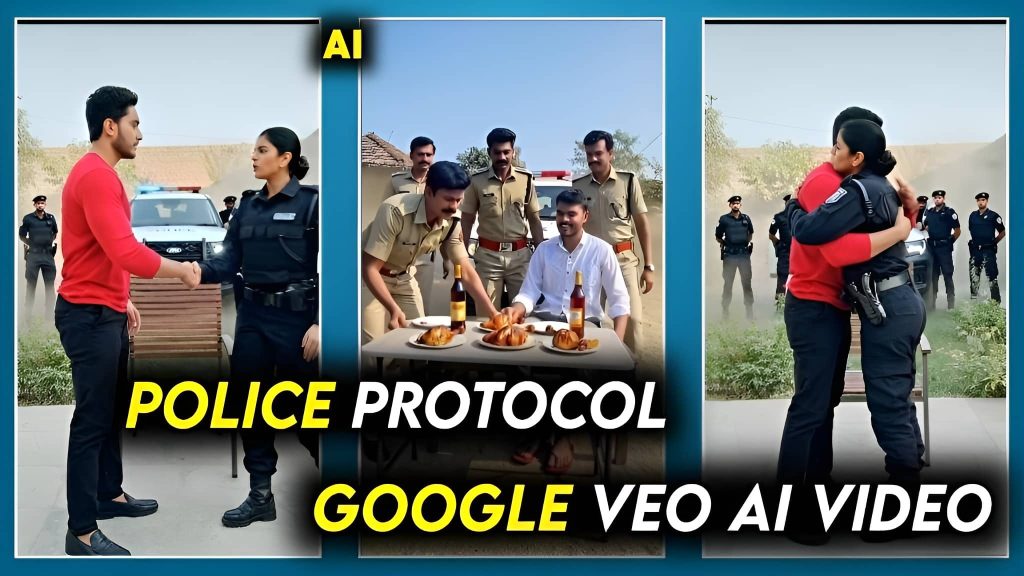
Google Veo AI Video: How to Create Viral Police Protocol Videos
In this post you will find a complete guide on how you can make this AI video.
Introduction: A New Era of Social Media Google Veo AI
The landscape of social media is shifting at an incredible pace. Gone are the days when simple filters were enough to capture attention. Today, the world of TikTok, Instagram Reels, and YouTube Shorts is dominated by high-quality, cinematic content that looks like it belongs on the big screen. But for the average creator, renting a police squad, hiring a professional camera crew, and spending thousands on VFX is simply not possible.
This is where Artificial Intelligence steps in. Specifically, Google Veo. In this comprehensive guide, we will dive deep into how you can use Google’s most powerful video generation model to turn a static image into a high-stakes action scene. Whether it’s a police protocol video or a high-speed car drift, Google Veo makes it possible with just a few clicks.
What is Google Veo? Understanding the Engine
Google Veo is not just another animation tool. It is a sophisticated generative AI model designed by Google DeepMind. Unlike its predecessors, Veo has an advanced understanding of “Cinematic Language.” It understands what a “tracking shot,” a “pan,” or “motion blur” looks like.
When you provide a reference image, the AI doesn’t just move parts of the picture. It reconstructs a 3D environment based on your photo. It calculates how light should hit your face if a car with flashing sirens passes behind you. This level of detail is why videos created with Veo are going viral globally.
The Power of Image-to-Video Transformation
The most impressive feature of Google Veo is its Image-to-Video capability. By using a “Base Image,” the AI maintains the identity of the person in the photo (which is you) while generating a completely new world around them. This is crucial for branding. If you want to be the “hero” of your own action movie, Veo ensures that your face, clothing, and posture remain consistent throughout the generated clip.
Step-by-Step Tutorial: Creating the “Police Protocol” Masterpiece
1. Preparing Your Base Image Before you even open the AI tool, you need a high-quality photo. For the best results:
- Position: Sit on a chair or stand in a way that feels natural for an action scene.
- Lighting: Ensure your face is well-lit. Natural sunlight is best.
- Background: Keep some space behind you. A garden, a driveway, or an open street works perfectly for “Police SUV” entries.
2. Accessing the AI Test Kitchen (VideoFX) Currently, Google Veo is integrated into the VideoFX tool within Google’s AI Test Kitchen. To access it, you will need a Google account. If you are in a region where the tool is not yet fully rolled out, a VPN set to the United States will give you instant access.
3. Setting Up the Scene Once you upload your image, you will see a workspace. This is your director’s chair. You will see an option to add a “Prompt.” This is where most people fail because they are too vague. To get a video like the one in my reference, you need a “High-Drama” prompt.
Deep Dive: Prompt Engineering for Viral Success
A prompt is a set of instructions for the AI. To get 4K cinematic results, you must describe:
- The Subject: (A man sitting in sharp focus).
- The Action: (Police SUV drifting, dust rising).
- The Interaction: (Officers stepping out, a handshake, a hug).
- The Technicals: (Motion blur, shallow depth of field, 4K).
By combining these elements, you give the AI a clear roadmap
Google Veo AI
Prompt
🎬 Cinematic Video Generator Tools
Use the professional prompt below to generate your viral police protocol video.
Disclaimer:
The content provided in this tutorial is for educational and transformational purposes only. The videos and effects described are generated using Artificial Intelligence (AI) technology and do not represent real-life events. We do not promote or encourage any illegal activities or the misuse of official law enforcement symbols. All AI tools mentioned (such as Google Veo) should be used in accordance with their respective terms of service and community guidelines. The results may vary based on the quality of the reference image and the specific prompts used.
Pingback: How to 8K Quality Using Google Gemini(2026 Guide) - Waqas Tech APK